DriveEasy Pro
5-Step OBD Install Guide
Plug in and start tracking. Install your device as soon as possible to start maximizing savings.
-
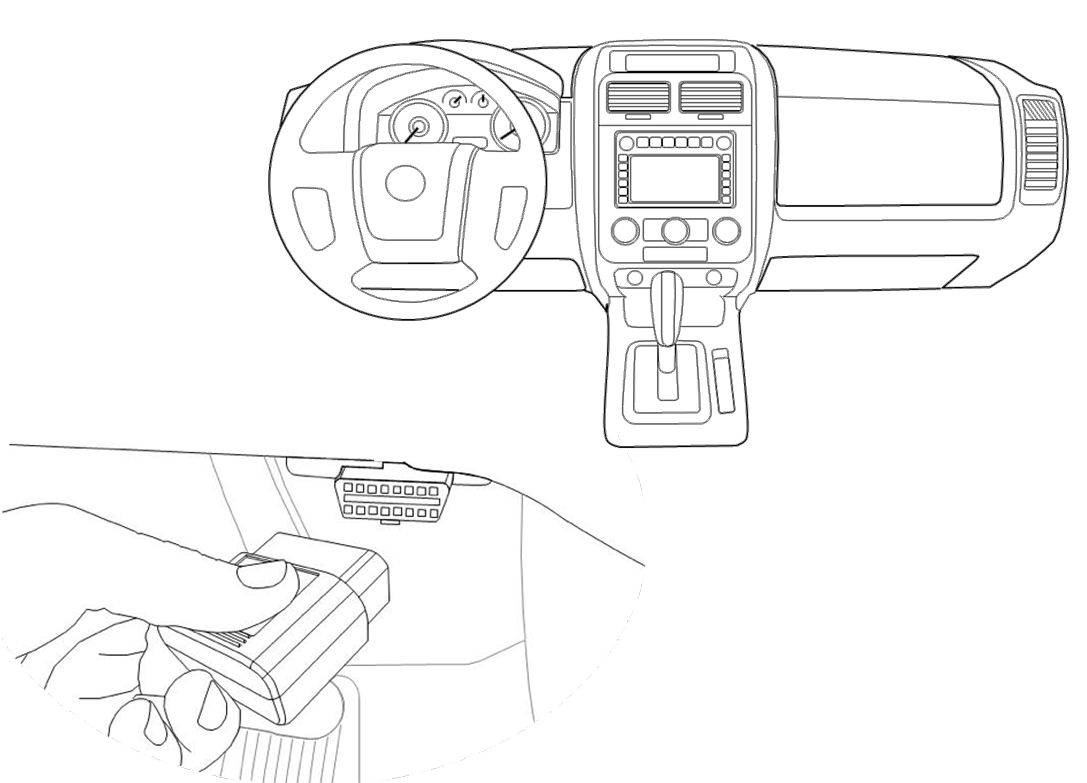
Find your vehicle's OBDII port.
The port is usually located on the driver's side, below the dash. Some OBD ports are covered by panels that you may need to remove.
-
Do you have an adapter?
You may need an adapter depending on your vehicle.
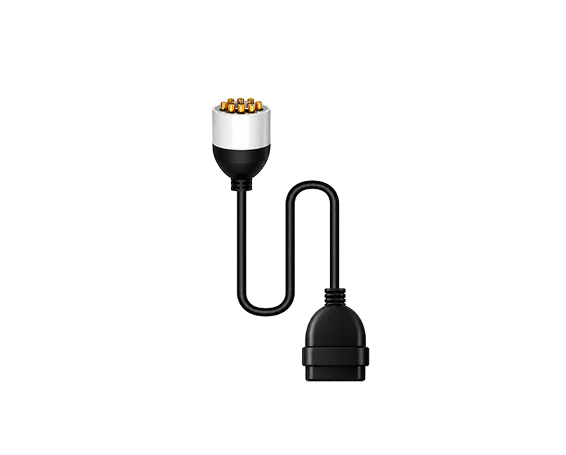
6 or 9-Pin Adapter
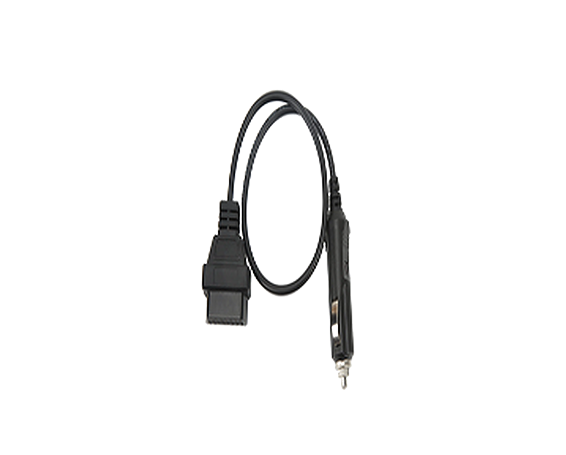
Power Adapter
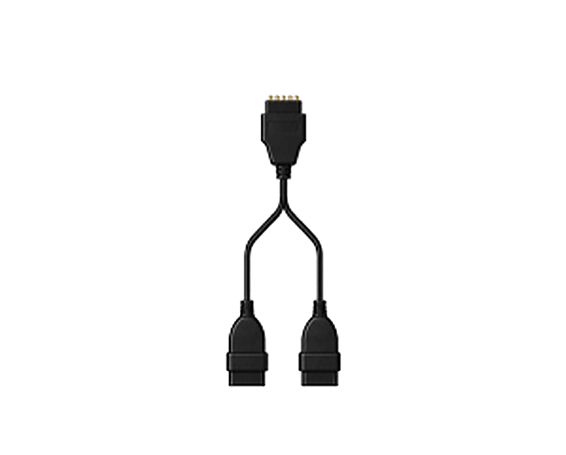
Y-Splitter (16 Pin)
6 or 9-Pin Adapter
Use this if your vehicle has a round 6-pin diagnostic port (common on older heavy-duty and commercial vehicles).
- With the vehicle OFF, find the round 6-pin port.
- Plug the 6-pin end of your kit adapter into the vehicle port. Align the connector and push in firmly.
- Connect your DriveEasy Pro device as shown in your kit instructions.
Important: Do not force a 6-pin connector into a 9-pin port.
Use this if your vehicle has a round 9-pin diagnostic port (common on older heavy-duty and commercial vehicles).
- With the vehicle OFF, find the round 9-pin port.
- Plug the 9-pin end of your kit adapter into the vehicle port. Align the connector and push in firmly.
- Connect your DriveEasy Pro device as shown in your kit instructions.
Important: Do not force a 9-pin connector into a 6-pin port.
Power Adapter
Use this if your kit includes a 12V adapter that connects to your vehicle's power outlet instead of plugging directly into an OBD-II port.
- With the vehicle OFF, locate your vehicle's 12V accessory port or cigarette lighter.
- Plug the 12V adapter into the port until it is fully seated.
- Connect your DriveEasy Pro device to the adapter as shown in your kit instructions.
- Route the cable so it does not block the pedals, steering wheel, or airbag areas.
Y-Splitter (16 Pin)
- With the vehicle OFF, locate your 16-pin OBD-II port.
- Gently unclip the factory OBD port from its mount if needed.
- Plug the Y-splitter into the vehicle harness; factory port on one leg, device on the other.
- Secure and route the cable so it does not block the pedals, steering wheel, or airbag areas. Use provided zip ties.
-
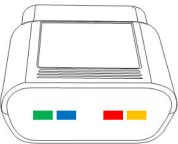
With the vehicle OFF, plug in the device.
The device will light up.
-
Wait 5 minutes with the vehicle OFF.
Device lights may continue blinking.
-
After 5 minutes, turn the vehicle ON.
-
With the vehicle ON, wait 1 minute.
The device will fully connect.
That's it!
You can turn the vehicle off, or take a trip!
Installation Tips
If a device doesn't light up during installation, remove it and firmly plug it back in
If your vehicle needs an adapter, we'll include it in the box
A device can go in any vehicle on your policy—they're not tied to specific vehicles
Install your devices as soon as possible to start tracking your vehicles right away
Confirm your devices are plugged in by checking the DriveEasy Pro Dashboard
Keep your devices plugged in—even when vehicles are off—to continue tracking your vehicles and maximizing your savings
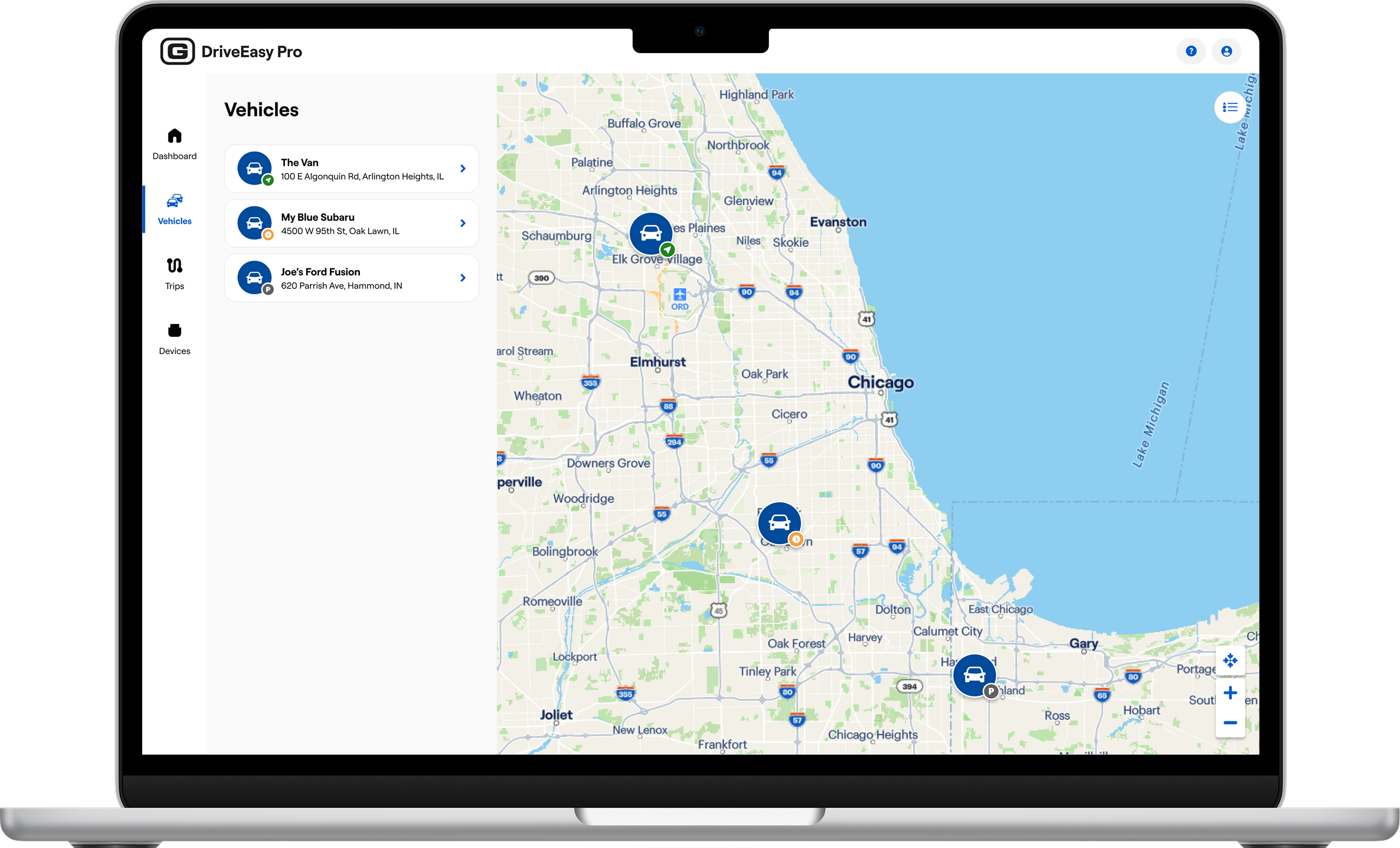
Track your vehicles online on the DriveEasy Pro Dashboard.
Keep your devices plugged in at all times to continue tracking.
DriveEasy Pro is not available in all states and situations. Premium rates will generally vary based on the driving habits logged by the program. All active drivers on the policy must participate. All provided devices must be installed and activated as outlined in the DriveEasy Pro program requirements and instructions. For more information, see the DriveEasy Pro User Agreement, Privacy Notice, and FAQs. *OBD plug-in devices and road-facing dashcams must be returned if a policy is cancelled or a participating vehicle is removed
Some discounts, coverages, payment plans and features are not available in all states or all GEICO companies. Average savings amount based on national GEICO New Policyholder survey data through October 2024. Customer satisfaction based on an independent study conducted by Alan Newman Research, published 2024.
The GEICO Mobile app received the #1 ranking according to the Keynova Q1 2026 Mobile Insurance Scorecard. GEICO is a registered service mark of Government Employees Insurance Company, Washington, D.C. 20076; a Berkshire Hathaway Inc. subsidiary. ©2026 GEICO.


